How to drag a file to a window that is hidden behind another one
You pick up a file in Explorer and only then notice that the place you want to drop it (a chat, an email, an upload page, another folder) is buried under other windows. Letting go and starting over works, but Windows has several ways to reach a hidden window without dropping the file. Here are five, from built-in tricks to a tool made for it.
1. Hover over the app on the taskbar
Keep holding the mouse button and move the file onto the app's button on the taskbar. After about a second Windows brings that window to the front, and you can carry on to the drop target. If the app has several windows, hover until the thumbnails appear, then hover over the right thumbnail.
This works on Windows 10 and on Windows 11 version 22H2 or later. The very first release of Windows 11 (21H2) had removed taskbar drag and drop, so update Windows if nothing happens.
2. Press Alt+Tab while still dragging
With the mouse button held down, press Alt+Tab with the other hand, choose the window, and release Alt. The drag is still in progress, so you can drop the file into the window that has just come forward. It takes two hands, but it is the quickest built-in method once you are used to it.
3. Snap both windows before you start
If you already know you will drag between two windows, put them side by side first: select one window and press Win+Left, then pick the other one from Snap Assist (or press Win+Right on it). Both stay visible for the whole drag. It is the most reliable method, but it has to be done before you pick the file up.
4. Use the folder tree in Explorer
When the target is another folder, you do not need a second window at all. Drag the file onto the navigation pane on the left of Explorer and hover over a folder: it expands after a moment, so you can go down the tree and drop the file where it belongs. Holding the file over the top or bottom of the pane scrolls it.
5. Park the file on a drag shelf
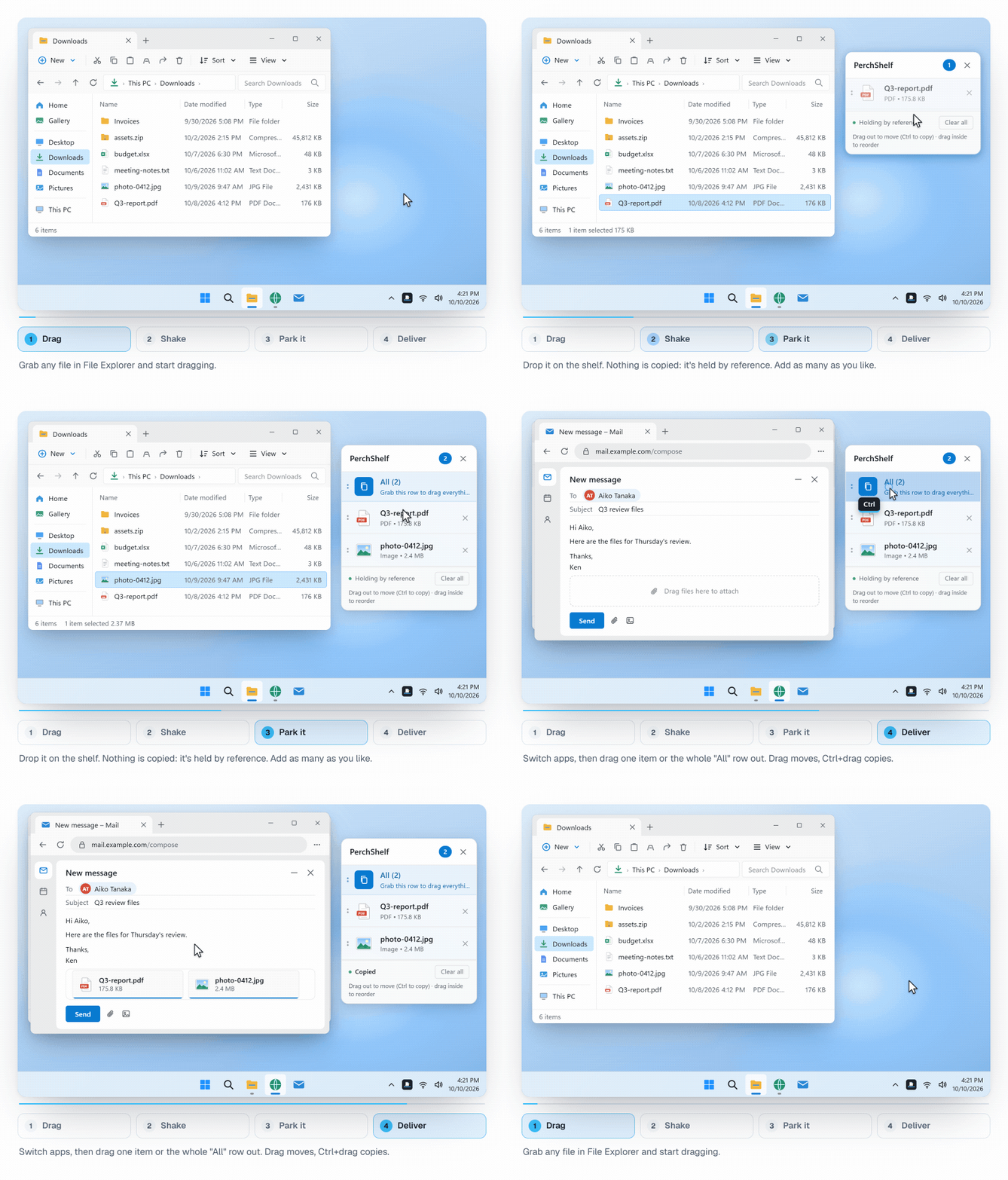
The methods above all keep you holding the mouse button while you search. A drag shelf removes that: you drop the file on a small temporary panel, take your time to open or find the destination, then drag the file out from the shelf. Mac users know this from Yoink and Dropover.
PerchShelf does this on Windows 10 and 11. Shake the mouse while dragging, or move to a screen edge, and a shelf appears next to the cursor. Files are kept by reference, so nothing is copied, and links, images and text from browsers can be parked too. It also helps when you collect files from several folders before sending them all at once.
Which one to use
- Occasional drag to another app: hover over the taskbar or use Alt+Tab.
- Moving many files between two folders: Snap the two windows, or use the folder tree.
- Gathering files from several places, or dragging to a destination you still have to open: a drag shelf.
PerchShelf is a drag-and-drop shelf for Windows 10 and 11. It works offline, collects nothing, and has a 30-day trial on the Microsoft Store. See also Yoink / Dropover for Windows, how the shake is detected and what to do when drag and drop is not working.