Drag and drop not working on Windows 11/10: 7 causes and fixes
You drag a file and nothing happens: the cursor shows a "no" sign, the file will not lift at all, or it never lands in the target window. Usually one of a handful of causes is behind it. Work through them in order; the quickest fixes come first.
1. A stuck drag: press Esc
Sometimes Windows thinks a drag is still in progress, for example after an app crashed in the middle of one. Then no new drag and drop works. To clear it:
- In File Explorer, click any file with the left mouse button and keep holding it.
- While holding, press
Esconce. - Let go of the mouse button and try again.
This cancels the stuck operation and fixes it surprisingly often.
2. Restart File Explorer
If Esc does not help, restart Explorer: Ctrl+Shift+Esc opens Task Manager, right-click Windows Explorer and choose Restart. The taskbar and desktop disappear for a moment and come back. Restarting the PC does the same, only slower.
3. The target app runs as administrator
This is the most common cause when drag and drop fails into one particular app only. For security, Windows does not let you drag from a normal app (such as File Explorer) into an app that runs with administrator rights. The cursor shows the "no" sign.
- Start the target app normally, not with Run as administrator.
- In the shortcut's properties, check the Compatibility tab for Run this program as an administrator.
- An app started from an elevated terminal or editor inherits its administrator rights.
If the app really needs administrator rights, open the file through its own File › Open dialog instead.
4. The target does not accept that kind of content
The "no" sign also appears when the target cannot use what you are dragging, such as a browser upload field that only takes images, or an app that does not accept dropped files at all. Try another target, for example a folder in File Explorer. If it works there, the target app is the problem, not Windows.
5. Dragging onto the taskbar (Windows 11)
In the first release of Windows 11 (21H2) you could not drag a file onto an app's taskbar button. Version 22H2 brought it back: hold the file over the button for a moment, the window comes to the front, then drop the file into it. If that does not work for you, install the latest updates (Settings › Windows Update).
If the target window is covered or on another monitor, there are more ways to reach it, see how to drag a file to a hidden window.
6. Touchpad and mouse
- Touchpad: you drag either with the button held down or by double-tapping and holding. Whether the latter is on is set under Settings › Bluetooth & devices › Touchpad › Taps. In a manufacturer's driver (Synaptics, ELAN) the option is often called "Drag" or "Tap and drag".
- Mouse: a worn left button briefly "lets go" mid-drag, and the file drops somewhere along the way. Test with another mouse.
7. The drag starts too late: DragHeight and DragWidth
Windows only starts a drag once the mouse has moved a few pixels with the button down. The default is 4 pixels. If a tweaking tool raised this value a lot, it looks as if drag and drop does not work. The value lives in the registry:
HKEY_CURRENT_USER\Control Panel\Desktop
  DragHeight = 4
  DragWidth  = 4
Only change it if the values are much larger, then sign out and back in. Back up the registry first.
Summary
| Symptom | Likely cause |
|---|---|
| Drag and drop works nowhere | Stuck drag (Esc), restart Explorer |
| Fails into one app only | The app runs as administrator, or it does not accept the content |
| Not onto the taskbar | Windows 11 21H2, install updates |
| File drops mid-drag | Mouse button, touchpad setting |
| Drag starts late | DragHeight / DragWidth |
Tip: drag in two steps
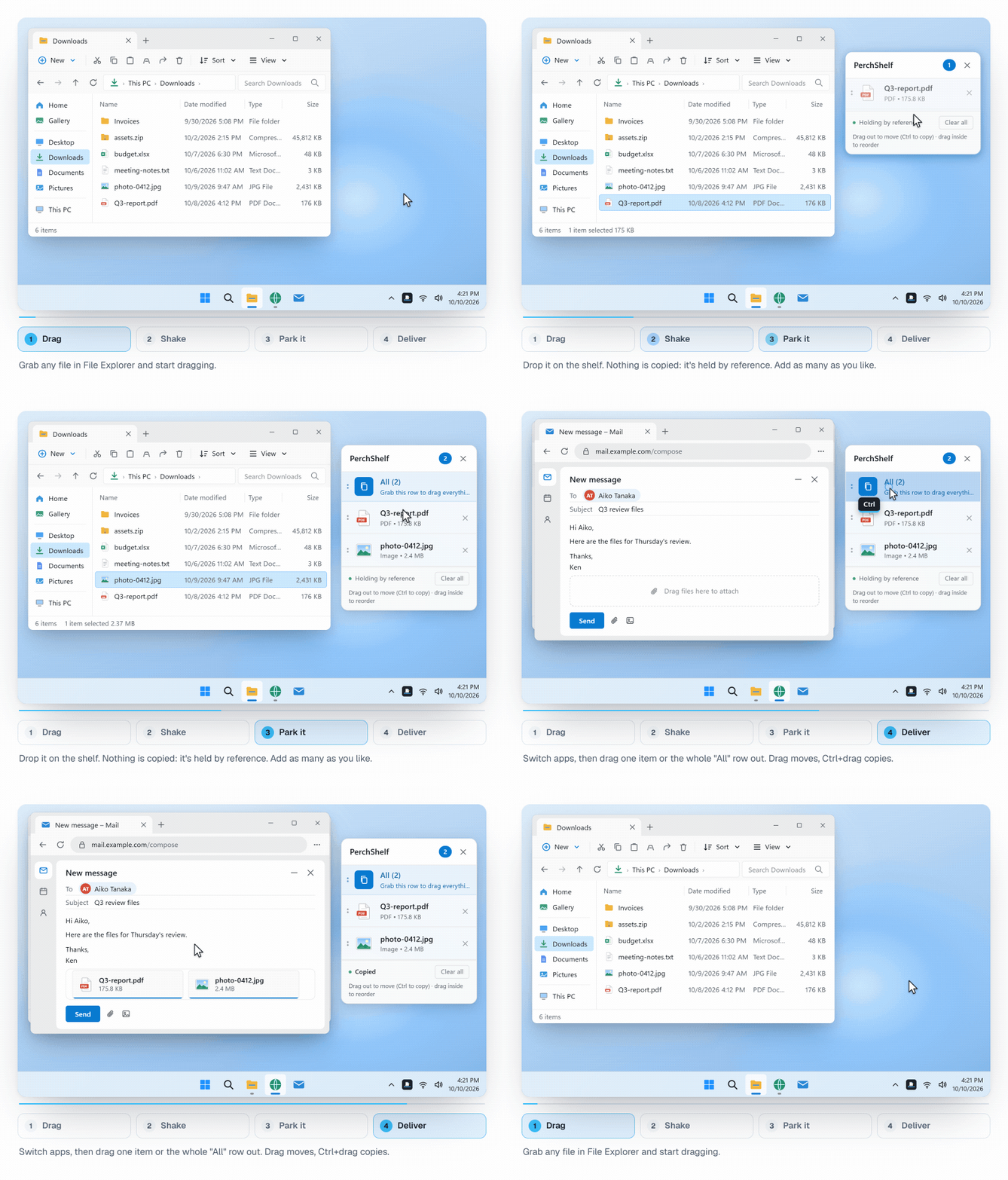
Many drag-and-drop problems come from the source and the target not being visible at the same time, so you have to keep the button down while switching windows. PerchShelf is a shelf for Windows 10 and 11 that splits this into two steps: drag a file, give the mouse a quick shake, a shelf appears next to the cursor, drop the file there and let go. Then open the target at your own pace and drag the file from the shelf into it. It does not get around administrator windows (cause 3), though; that block applies to every app.
PerchShelf is a drag-and-drop shelf for Windows 10 and 11. It works offline, collects nothing, and has a 30-day trial on the Microsoft Store. See also how to collect files from several folders.