How to collect files from several folders and send them together
A report in Documents, two photos in Pictures, a PDF in Downloads, and they all need to go into one email, one chat message or one upload form. Explorer lets you select several files only inside a single folder, so the usual result is attaching them one at a time. Here are four better ways.
1. Search the parent folder in Explorer
Open a folder that contains all the others (for example your user folder) and type part of the file names, or a filter like datemodified:today, into the search box. The results list shows files from every subfolder together, so you can Ctrl+click the ones you need and drag them, or press Ctrl+C, in one go.
This works well when the files have something in common: a name, a type or a date. When they don't, the search gets long and slow.
2. Copy them into a temporary folder first
Make a new folder on the desktop, copy each file into it, then send the whole set from there. It is reliable and works with any app, but you end up with duplicates to clean up afterwards, and copying large videos or archives takes time and disk space.
3. Attach in several rounds
Most mail clients and upload forms accept more files after the first batch. Attach what is in the first folder, then open the file picker again for the next one. It needs no setup, but each round means navigating through the picker again, and it is easy to miss a file.
4. Gather them on a drag shelf
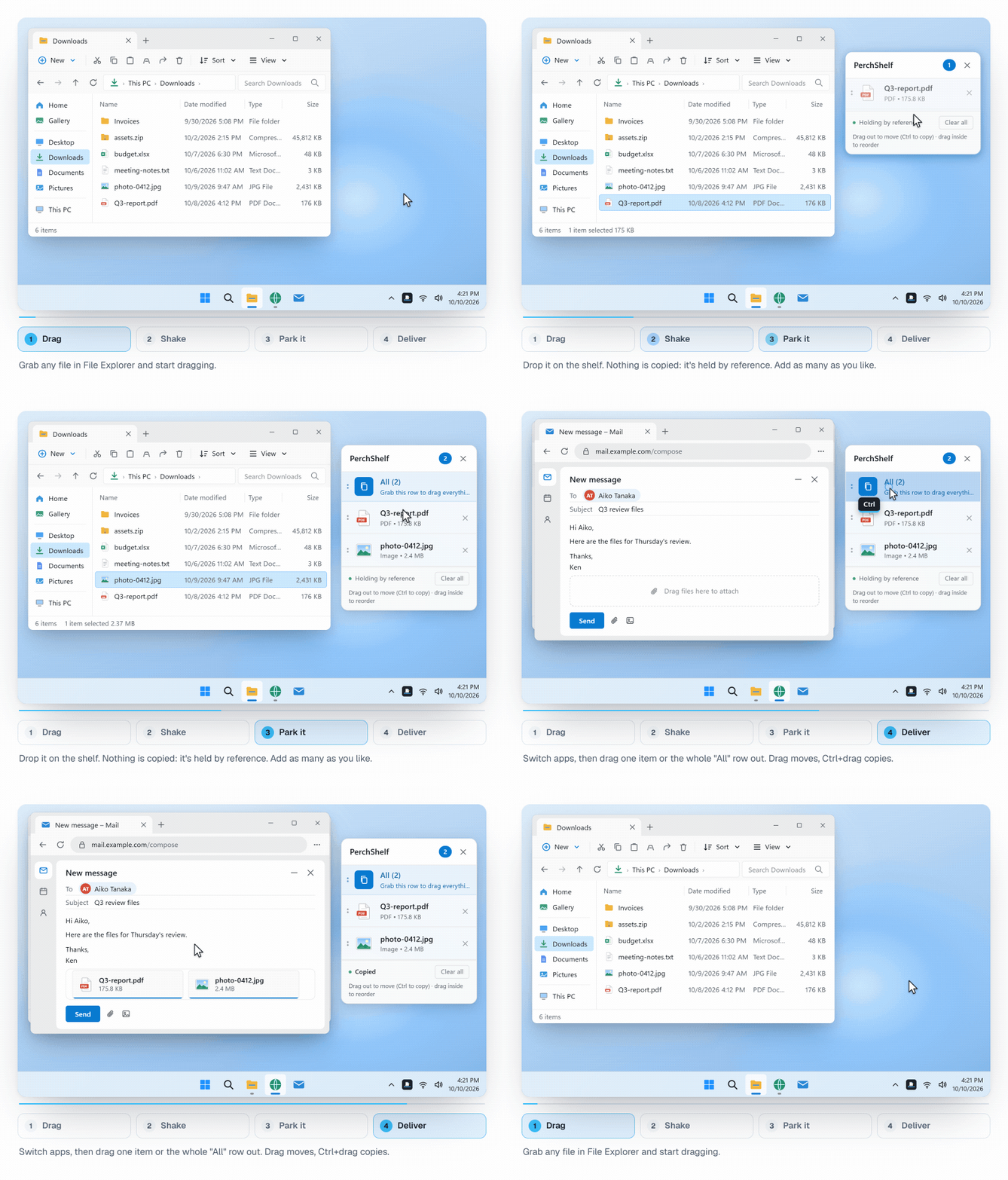
A drag shelf is a small panel that holds files temporarily. You visit each folder, drop the files you need on the shelf, and when everything is there you drag the whole set out at once into the email, chat or upload page. Mac users know the idea from Yoink and Dropover.
PerchShelf does this on Windows 10 and 11. Shake the mouse while dragging, or move to a screen edge, and the shelf appears next to the cursor. Files are kept by reference, so nothing is copied, even large files land instantly, and there are no duplicates to delete afterwards. You can drag out one item, or use the shelf's drag-all handle to take everything at once, and links, images and text from the browser can be collected too.
Which one to use
- Files share a name, type or date: search the parent folder.
- You need a set that stays together for later: a temporary folder.
- Only two or three files: attach in rounds.
- Files scattered across folders, browsers and apps, sent often: a drag shelf.
PerchShelf is a drag-and-drop shelf for Windows 10 and 11. It works offline, collects nothing, and has a 30-day trial on the Microsoft Store. See also how to drag a file to a hidden window.