How to save images, links and text from a web page by dragging
Dragging is often the quickest way to grab something from a web page: an image for a document, a link to send later, a paragraph to quote. On Windows, Chrome and Edge handle the three very differently once you drop them outside the browser. Here is what happens to each, and how to keep all of them in one place.
Images: drop them on the desktop or a folder
Drag an image out of Chrome or Edge onto the desktop or into an Explorer window and Windows saves it as an image file, usually with the name it has on the website. You can also drop it straight into many apps, such as a chat window or a document, without saving it first.
The catch: the file name is often meaningless (image-1024x576.jpg, a long hash), and the desktop fills up with downloads you meant to use once.
Links: you get an Internet shortcut
Drag a link, or the padlock / site icon at the left of the address bar, onto the desktop and Windows creates a .url Internet shortcut named after the page. Double-clicking it opens the page in your default browser. It is a handy way to keep a few pages for later without bookmarking them.
Text: Windows refuses the drop
Select a paragraph and drag it onto the desktop or into a folder and nothing happens: the cursor shows a "not allowed" sign. Current versions of Windows do not turn dropped text into a file. You can still drop text into apps that accept it, like Word, a mail draft or Notepad, but to keep it as a file you have to paste it into a new text document and save it yourself.
Keeping all three in one place
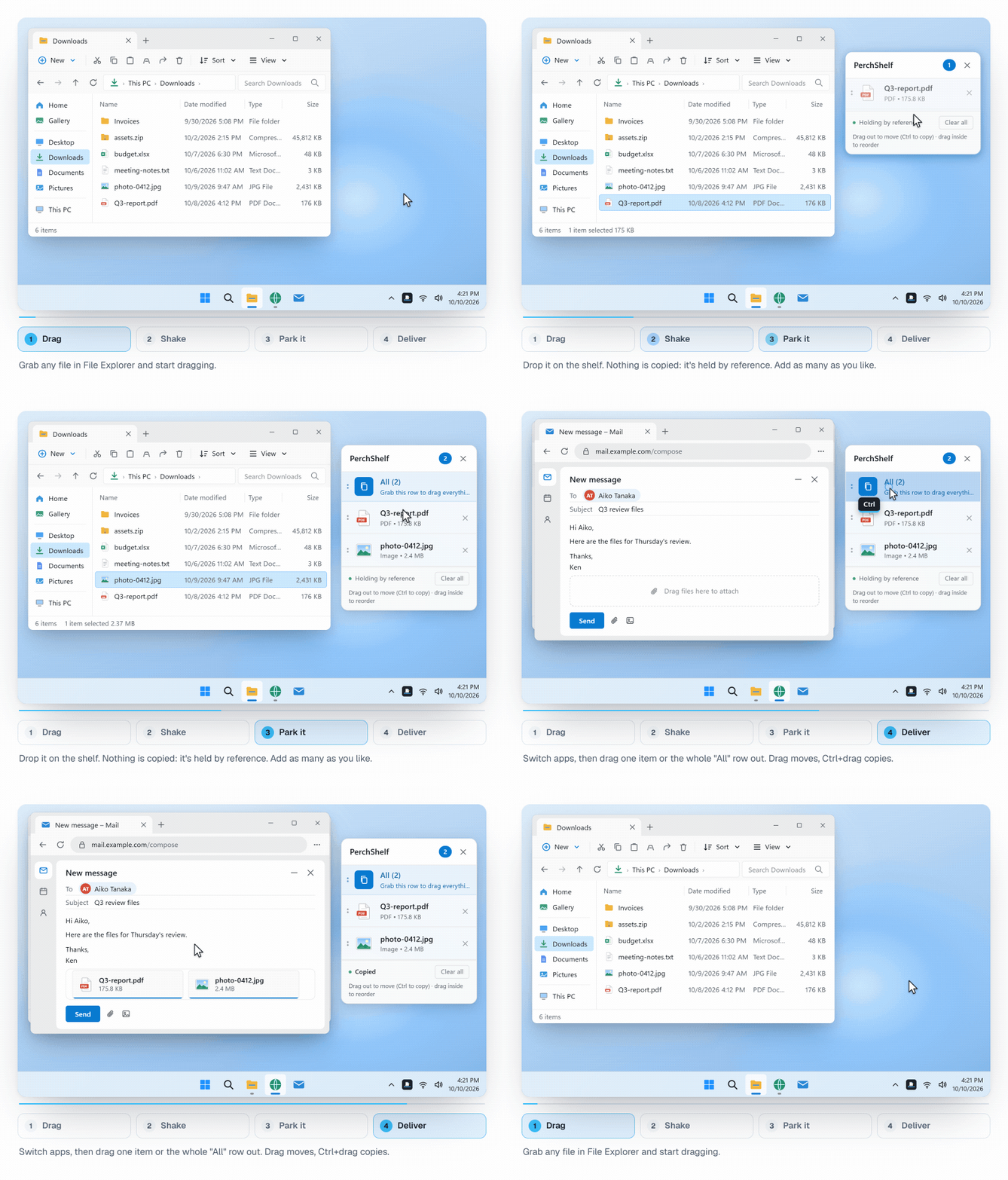
If you collect material from several pages, say images, sources and quotes for a report or a post, a drag shelf avoids scattering it across the desktop. PerchShelf is a small shelf for Windows 10 and 11 that appears next to the cursor when you shake the mouse while dragging, or move to a screen edge.
- Images dropped on the shelf are saved as image files.
- Links become Internet shortcuts named after the page.
- Text becomes a
.txtfile, named from its first words. For text, the shelf appears when you shake the mouse, so ordinary text selection is never interrupted.
Everything is kept in PerchShelf's own folder rather than on your desktop, and you drag items out again when you need them: into a document, an email, a chat or an upload page. Files you drop from Explorer are kept by reference, so nothing is copied.
Summary
- Image: drop on the desktop or a folder to save it as a file.
- Link: drop on the desktop to get a
.urlshortcut. - Text: Windows will not save it as a file on drop; paste it into a text file, or use a shelf that does it for you.
PerchShelf is a drag-and-drop shelf for Windows 10 and 11. It works offline, collects nothing, and has a 30-day trial on the Microsoft Store. See also how to collect files from several folders.