How to zip files from different folders into one ZIP (Windows 11 and 10)
Making a ZIP from files in one folder takes two clicks in Windows. When the files are spread out, say a contract in Documents, photos in Pictures and a spreadsheet on the desktop, File Explorer has no direct way to do it. Here are three ways that work.
For comparison: a ZIP from one folder
Select the files (Ctrl+click for individual files, Shift+click for a range), then right-click:
- Windows 11: "Compress to" › "ZIP File" (on older builds, "Compress to ZIP file").
- Windows 10: "Send to" › "Compressed (zipped) folder".
This only works for files you can select together, which means files in the same folder.
Way 1: a temporary folder
- Create a new folder, for example on the desktop.
- Copy each file there:
Ctrl+Cin the source folder,Ctrl+Vin the temporary folder. - In the temporary folder, select everything (
Ctrl+A) and compress it as above. - Delete the temporary folder afterwards.
This always works. The downsides: every file briefly exists twice, large files take time to copy, and files with the same name from different folders have to be renamed first.
Way 2: Explorer search
If all the files sit somewhere below one common folder (such as Documents), search there for part of the name or an extension like *.pdf. Matches from all subfolders appear in one list, where you can select them together and copy them into the temporary folder. It saves clicking through folders, but only helps when a search can narrow the files down.
Way 3: collect first, then save as ZIP
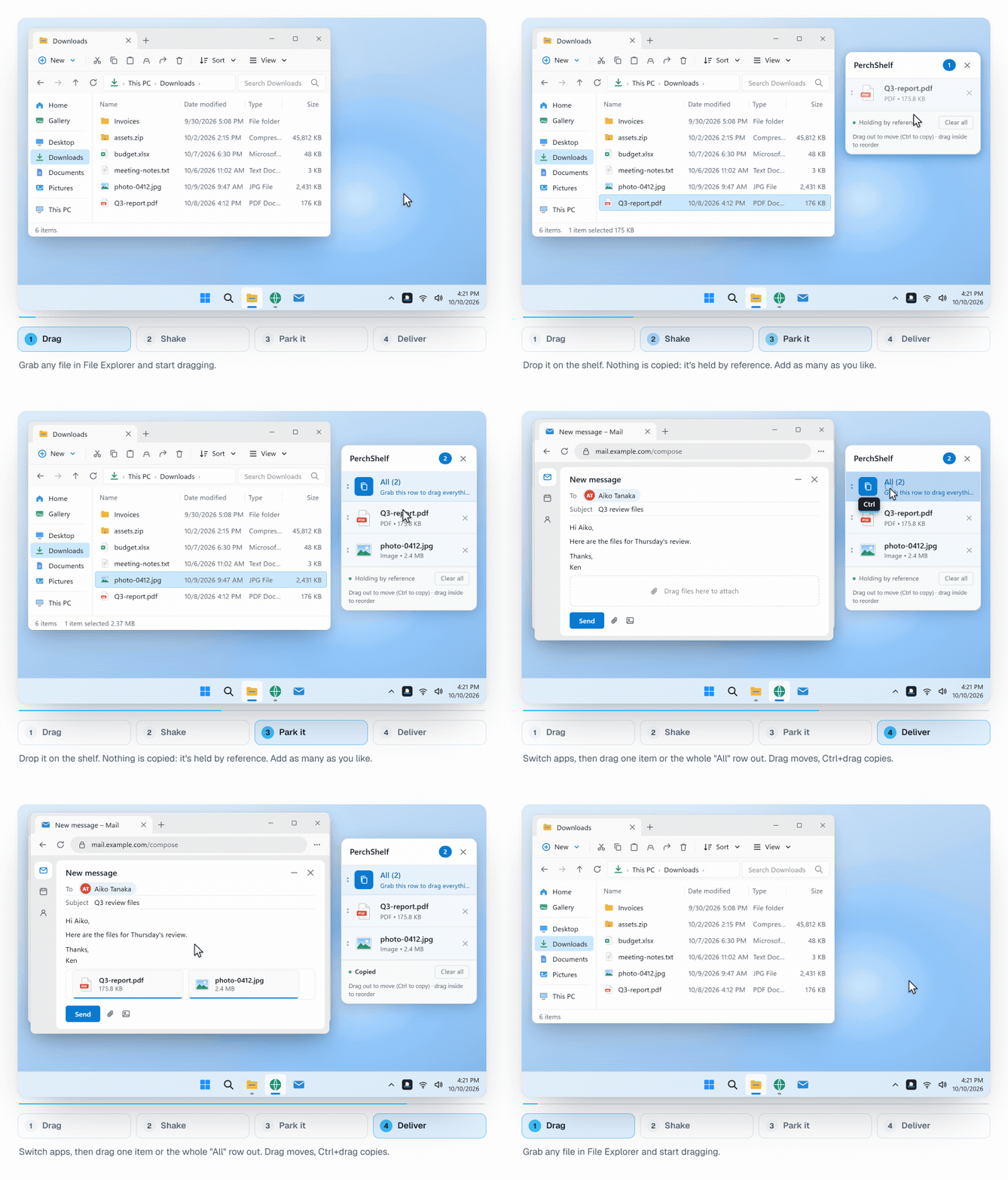
A shelf collects files from any folder without copying them. PerchShelf is a shelf like that for Windows 10 and 11, and since version 1.3 it can save its contents straight to a ZIP:
- Put the files on the shelf one after another: select them in Explorer, right-click, "Send to PerchShelf". Or drag a file and give the mouse a quick shake, and the shelf appears by the pointer.
- When everything is there, right-click the "All" row at the top of the shelf, choose "Save as ZIP…" and pick where to save it.
- Folders go into the ZIP with their contents.
- Files with the same name from different folders are not overwritten; they get " (2)", " (3)" added.
- The originals stay where they are; nothing is copied beforehand.
- The same menu also has "Copy into a folder…" if you want a folder instead of a ZIP.
Get PerchShelf from the Microsoft Store30-day trial, then a one-time purchase. Windows 10 and 11.
Summary
- From one folder: select, right-click, compress.
- From several folders without extra software: copy everything into a temporary folder and compress that, using Explorer search if it helps.
- Without a temporary folder: collect on a shelf and save it as a ZIP.
If you want to send the files rather than pack them, see How to collect files from several folders and send them together.
PerchShelf is a drag-and-drop shelf for Windows 10 and 11. Photos from your phone arrive on it by QR code (how that works). It works offline, collects nothing, and has a 30-day trial on the Microsoft Store, then a one-time purchase.