Drag and drop not working in Outlook: causes and fixes
A file won't drop into an email as an attachment, or emails no longer move into a folder when you drag them. It is usually one of a few causes. Here they are in the order worth checking, for classic Outlook and the new Outlook on Windows 11 and 10.
1. A stuck drag: press Esc
Windows sometimes keeps hold of a drag that was cut off, and after that drag and drop stops working in Outlook and often everywhere else too. The fix: click any file in File Explorer, keep the left mouse button held down, press Esc, then let go. If that doesn't help, close Outlook and start it again.
2. Outlook or Explorer is running as administrator
You can't drag from a normally started program into one running with administrator rights. If Outlook was opened with right-click "Run as administrator", or its shortcut is set to do that, dragging from File Explorer fails. Start Outlook normally and it works again.
3. A known bug in classic Outlook (Windows 11 24H2)
After the Windows updates KB5050094 and KB5051987, classic Outlook could no longer drag emails and calendar items into folders. Microsoft listed it as a known issue and fixed it in the February 25, 2025 update (KB5052093). If this is you, install the latest Windows updates. The suggested workaround in the meantime was to switch File › Options › General from "Optimize for compatibility" to "Optimize for best appearance".
4. An add-in gets in the way
Add-ins (from antivirus, PDF or CRM software, for example) can block drag and drop. To test, start Outlook in safe mode: Win+R, type outlook.exe /safe, press Enter. If dragging works there, go to File › Options › Add-ins and turn add-ins off one at a time until you find the culprit.
5. The new Outlook is out of date
Some drag-and-drop features came to the new Outlook gradually, such as dragging attachments and emails out to the desktop. If something is missing that others already have, check for updates (Microsoft Store or Outlook's settings). Dragging between different mailboxes, or between classic and new Outlook, isn't supported in every case.
6. Outlook is behind other windows
If the Outlook window is covered or minimized, drag the file onto the Outlook icon on the taskbar and wait a moment. Since Windows 11 22H2 the window then comes to the front. You can also press Alt+Tab to switch to Outlook while dragging, without letting go of the mouse button.
7. The file is too large
If dragging works in general but fails with one large file, it is usually the size limit of the mail account. Depending on the account, Outlook then offers to share the file as a link (through OneDrive, for example).
Tip: attach files from several folders in one go
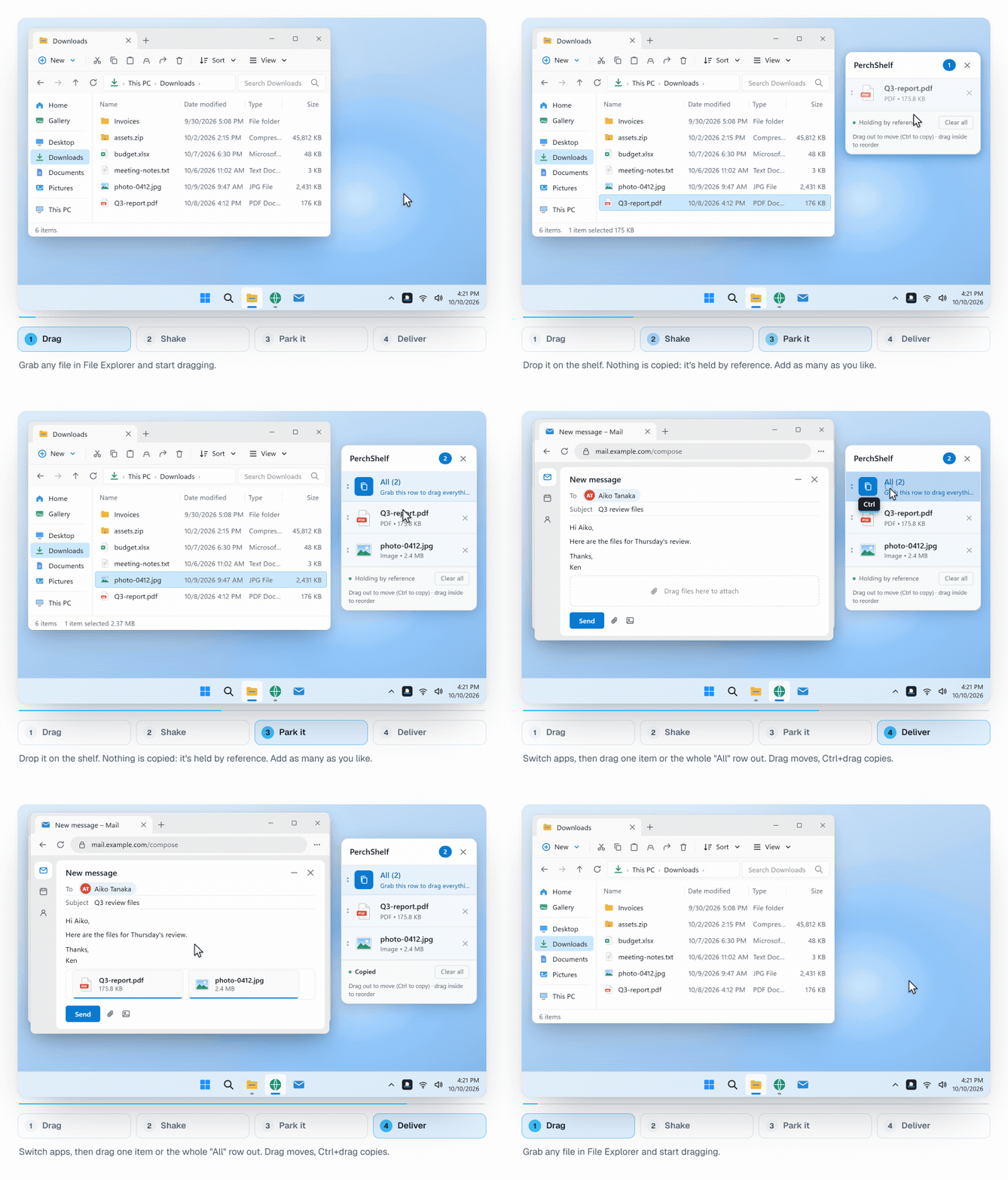
When an email needs files from different folders, you normally drag each one in separately or jump from folder to folder in the "Attach File" dialog. With a shelf like PerchShelf you collect the files first (right-click in File Explorer, "Send to PerchShelf"), then drag them all into the email at once from the "All" row.
Get PerchShelf from the Microsoft Store30-day trial, then a one-time purchase. Windows 10 and 11.
Summary
- Try the Esc trick and an Outlook restart first.
- Don't run Outlook as administrator.
- Update Windows and Outlook; for classic Outlook on 24H2, KB5052093 fixes the known bug.
- Use
outlook.exe /safeto check whether an add-in is the cause.
If drag and drop doesn't work outside Outlook either, see Drag and drop not working in Windows.
PerchShelf is a drag-and-drop shelf for Windows 10 and 11. Photos from your phone arrive on it by QR code (how that works). It works offline, collects nothing, and has a 30-day trial on the Microsoft Store, then a one-time purchase.