Drag and drop on a laptop touchpad: how to keep files from dropping midway
With a mouse, dragging is easy. On a laptop touchpad your finger runs out of room halfway, you lift it to reposition, and the file lands somewhere you did not want. This page covers the Windows setting that helps, how to make the drag shorter, and how to avoid long drags altogether.
Two ways to drag on a touchpad
- With the button: Hold the left button (or the lower-left corner of the touchpad) down with your thumb and move with another finger. As long as your thumb stays down, the moving finger can lift and reposition.
- Double-tap and hold: Tap the file twice, leave your finger down on the second tap, and drag. This only works if Settings › Bluetooth & devices › Touchpad › Taps has "Tap twice and drag to multi-select" turned on. Lifting the finger drops the file.
For long distances the first method is safer, because lifting the moving finger does not drop the file. Older Synaptics and ELAN drivers also had a "drag lock" option for this; most newer laptops with a Precision Touchpad do not.
Make the distance shorter
- Windows side by side:
Win+left arrow andWin+right arrow put the source and target next to each other, so the drag is only a few centimetres. - Via the taskbar: Drag the file onto the target app's taskbar button and wait a moment. The window comes to the front and you keep dragging.
- No dragging at all: Between folders,
Ctrl+X(orCtrl+C) andCtrl+Vat the target works. For upload areas in a browser it does not, though; there you need to drag or use the file dialog.
Drag in two short steps
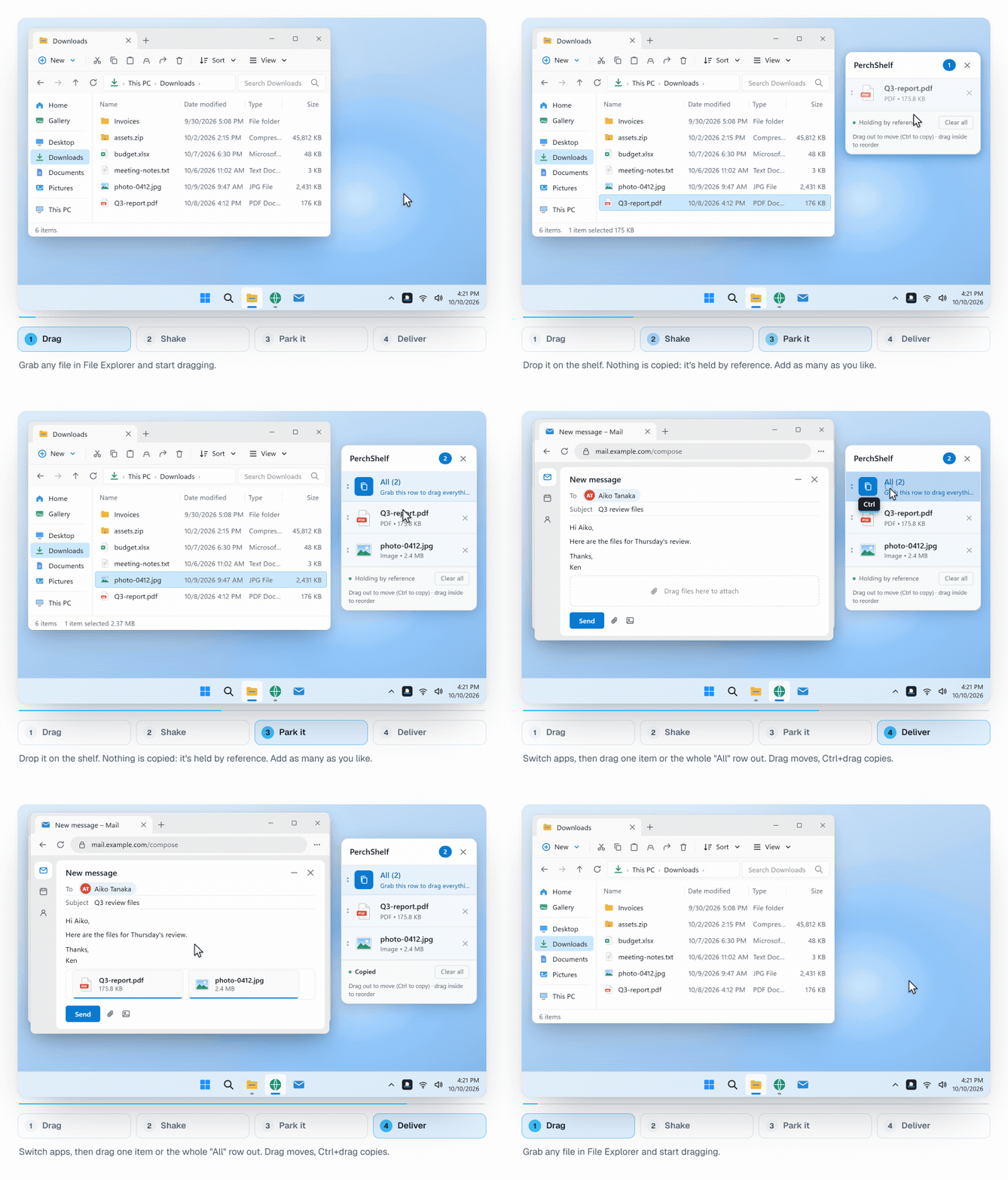
A shelf splits one long drag into two short ones: drop the file nearby, find the target at your own pace, then drag on from there. PerchShelf is a shelf like that for Windows 10 and 11, and you can fill it without dragging far:
- Right-click in Explorer (on a touchpad: tap with two fingers), then "Send to PerchShelf". This works with many selected files at once.
- Screen edge: Drag a file to the right edge of the screen and the shelf appears there. You can choose which edges do this.
- Hotkey:
Ctrl+Shift+Fshows and hides the shelf (you can change it). Move it next to the target window. - Shake: Move back and forth briefly while dragging. This is easiest with a mouse; on a touchpad, set the sensitivity to "High (a light shake)" in the settings.
Later you drag the files out of the shelf, one at a time or all together with the "All" row, and only over the short distance to the target.
Get PerchShelf from the Microsoft Store30-day trial, then a one-time purchase. Windows 10 and 11.
Summary
- For long drags, hold the button with your thumb instead of double-tap-and-drag.
- Put source and target side by side with
Win+arrow keys, or drag via the taskbar. - Or go in two steps: first onto a shelf, then to the target.
If drag and drop does not work at all, even with a mouse, see Drag and drop not working on Windows 11/10: 7 causes and fixes.
PerchShelf is a drag-and-drop shelf for Windows 10 and 11. Photos from your phone arrive on it by QR code (how that works). It works offline, collects nothing, and has a 30-day trial on the Microsoft Store, then a one-time purchase.